Connect your iPhone or iPad to the same Wi-Fi network as your Xbox or PC.
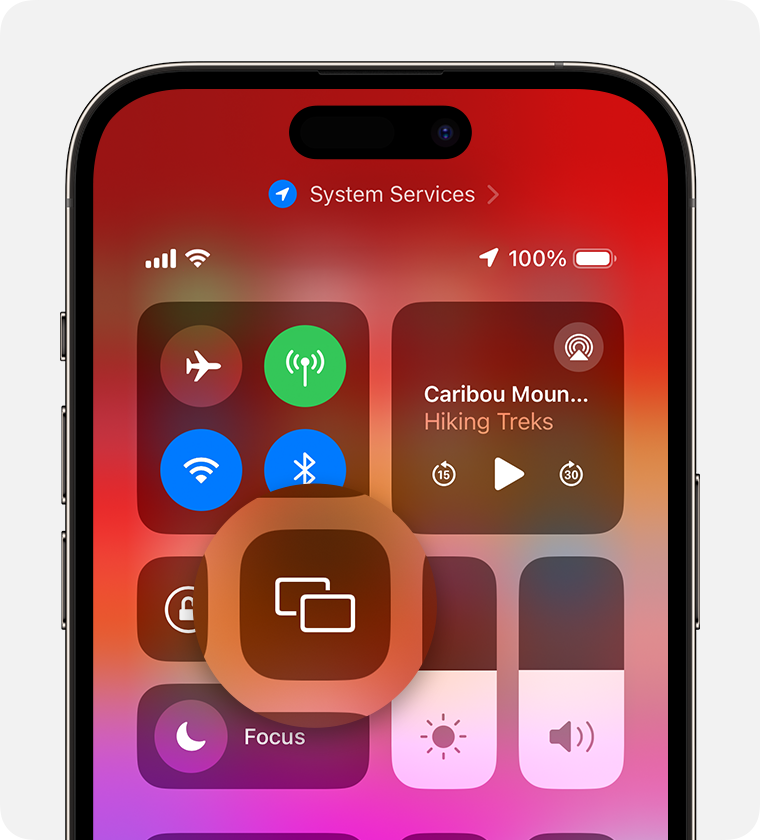
Open Control Center:
On iPhone X or later or iPad with iPadOS 13 or later: Swipe down from the upper-right corner of the screen.
On iPhone 8 or earlier or iOS 11 or earlier: Swipe up from the bottom edge of the screen.
Tap the Screen Mirroring button

.
Select your Xbox or PC from the list.
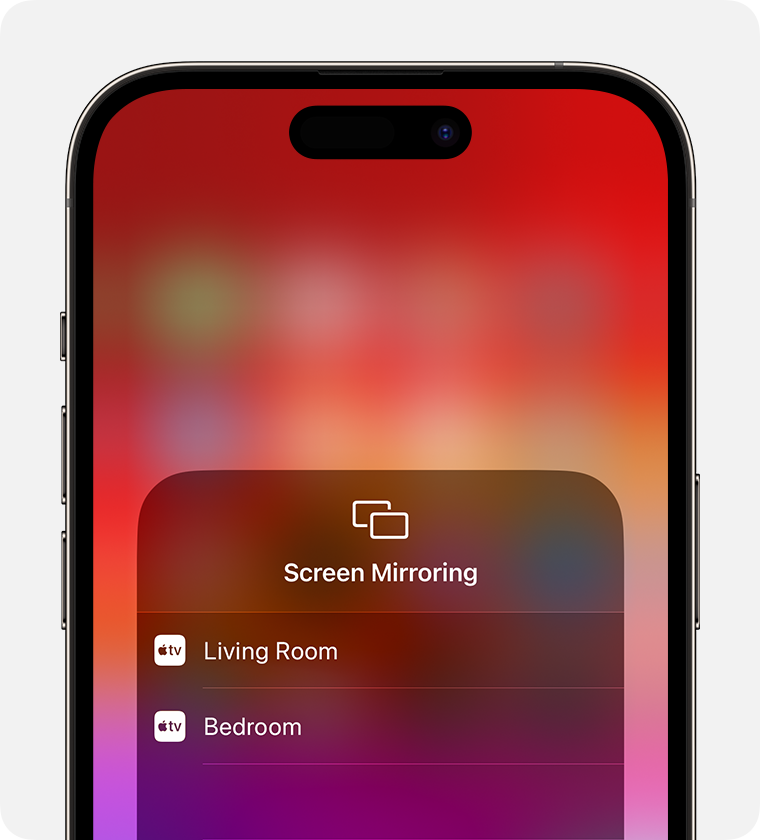
To stop mirroring your iPhone or iPad, open Control Center, tap Screen Mirroring, then tap Stop Mirroring.
Connect your device to the same Wi-Fi network as your Xbox or PC.
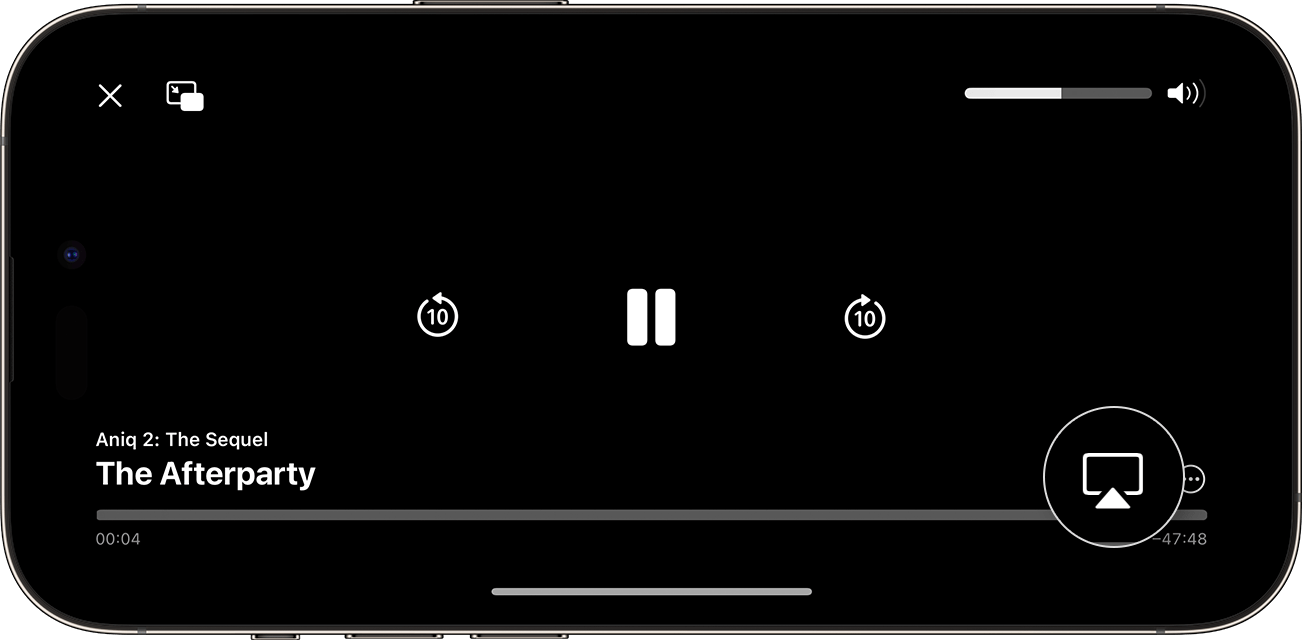
Find the video that you want to stream.
Tap the AirPlay button
.
In some apps, you might need to tap a different button first.
For example, in the Photos app, tap the Share button
,
then tap the AirPlay button
.
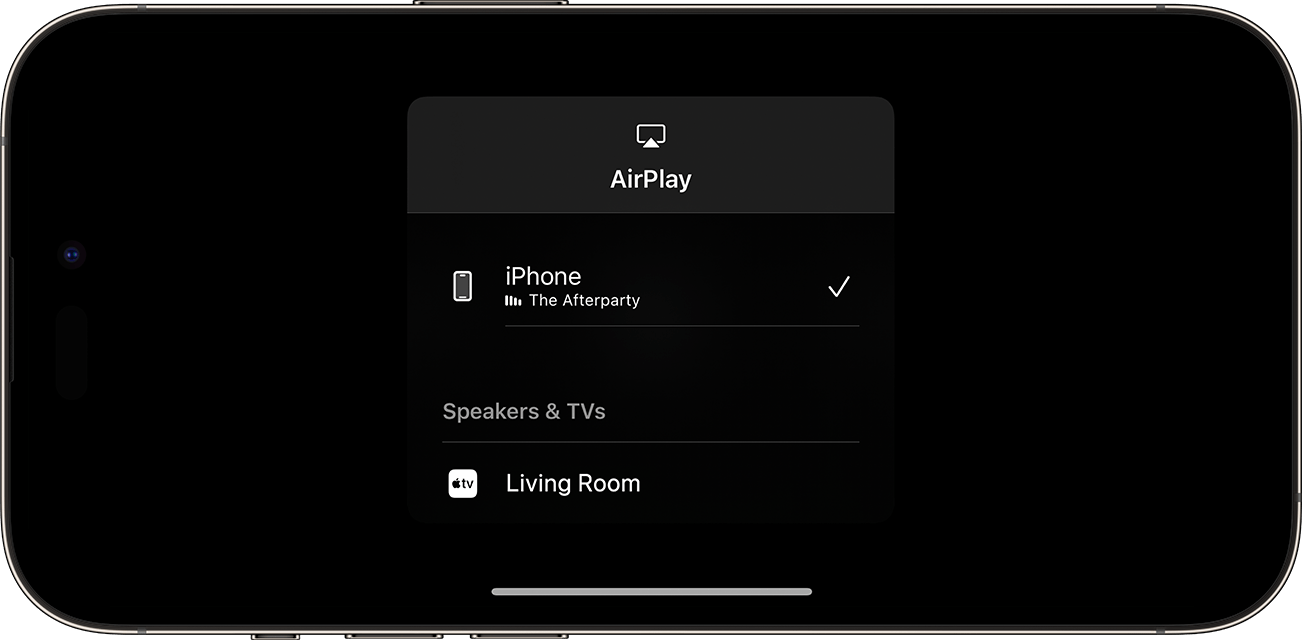
Choose your Xbox or PC from the list.
To stop streaming, tap the AirPlay button
in the app that you're streaming from, then tap your iPhone or iPad from the list.
There are a few things you might want to try:
Restart the AirPlay app, then disconnect your iPhone or iPad from the Wi-Fi network and reconnect it to the same Wi-Fi network as your Xbox or PC.
Restart both the AirPlay app and your Wi-Fi router to see if that resolves the issue.
If your router is dual-band (2.4/5GHz), please try setting it to either 2.4GHz or 5GHz single-band mode to see if that resolves the issue.
If you are using the AirPlay app on your PC, please make sure your PC's network setting is set to "Private network" instead of "Public network".
This setting can affect the visibility of devices on the same network. You can refer to this guide for instructions: Change to Private Network .